Connecting your Fire Stick to your TV
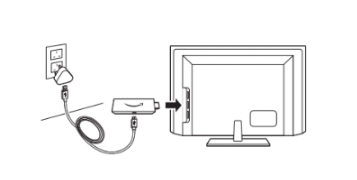
Connect it up like this and remember which HDMI port the stick is plugged into.
Switch on your TV and select the same HDMI input source on your TV.
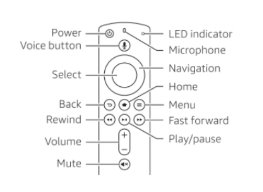
Press the Power button on your Fire Stick remote to get started and follow the instructions on screen.
Fire Stick Remote Control
Connecting your Fire Stick to the internet
Go to Settings
Select Network
Select your Wi-Fi network (SSID)
Enter your Wi-Fi password
Restarting your Fire Stick
There are three ways you can do this.
Use the remote - hold down the Play/Pause and Select buttons simultaneously.
In the settings menu - select the Settings menu on your TV, select the Device submenu, then select Restart.
Unplug the Fire Stick - turn the power off or unplug it for at least 15 seconds.
When the Fire Stick has rebooted, test your Wi-Fi signal.
Checking your Wi-Fi signal
Go to Settings
Select Network
Press Play/Pause to check the Network
It will say if it’s connected, and if the signal is good
If there’s no Network you could try turning your router off for 10 seconds to re-establish the connection
Help with buffering apps
If you’re experiencing buffering, or slow-loading apps, you could try clearing your Cache (short-term memory) on your most-used apps.
Go to Settings on your Fire Stick
Select Applications
In Manage Installed Applications select the app you’re having trouble with
Select Clear Cache then Clear Data
Help with connection issues
Because the Fire Stick is plugged in at the back of your TV the signal may be blocked.
User an extender
If you’re having trouble connecting to it, try using the extender provided, it helps place the Fire Stick closer to the edge of the TV.
You should have received an Extender with your Fire Stick kit. Longer Extenders can be bought on Amazon.

Switch HDMI ports
You could also try a different HDMI port - perhaps you have one on the side of your TV, rather than at the back.
Check the frequency its connected to
Your Fire Stick would benefit from being connected to the 2.4GHz frequency.
To check this
Go to Settings on your Fire Stick
Select Network
Highlight your Wi-Fi network (SSID) and press the Play/Pause button
You should be able to see the frequency the Fire Stick is using on this screen.
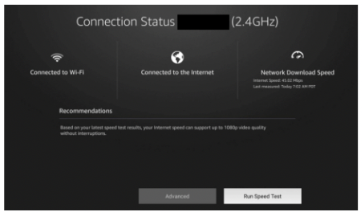
If the Fire Stick is on 5GHz you can change it in your router app settings.
Go to the eero app
Temporarily disable the 5GHz frequency
Reconnect the Fire Stick to the internet (you’ll need to Forget this Network on the Fire Stick first, see instructions below)
‘Jailbreak’ Fire Sticks
You may experience issues with a Fire Stick that has had a ‘jailbreak’ performed, and which are not down to the internet connection, but because of the server the Stick is trying to connect to. So things like:
Being more vulnerable to security issues
Having a less stable connection
Experiencing crashes and freezes
More buffering and loading issues - especially at peak traffic times e.g. evenings and weekends
How to ‘Forget this Network
Go to Settings
Select Network
Highlight your Wi-Fi network (SSID)
Press Menu button on your remote
Select Forget this Network